
For most work-from-home desks, a dedicated screen cleaner spray plus a clean, dedicated microfiber cloth is the complete answer. Spray onto the cloth (never the screen), wipe with light straight strokes, and keep the screen powered off. If you also want to maintain your keyboard and ports, a laptop cleaning kit bundles everything in one organised set. Avoid glass cleaner, tissues and ordinary cloths.
Working from home means your laptop or monitor is on for 8 to 12 hours a day, every day. It sits on a desk where you eat lunch, drink coffee, rest your hands and occasionally sneeze. It gets touched, adjusted and peered at closely whenever something on screen is not quite visible.
Over time, a screen that came out of the box with perfect clarity develops a persistent haze of fingerprints, dust and skin oils that no amount of squinting improves. Most work-from-home setups have no dedicated screen cleaning solution at all. People reach for a tissue, a glasses cloth found in a drawer, or a spritz of whatever spray is on the desk. All of these are either ineffective or actively damaging. Setting up the right solution is a small investment that protects a much larger one.
1Why Do Laptop and Monitor Screens Get Dirty So Quickly?
The specific contamination sources of a home desk
A screen at a work-from-home desk accumulates contamination from several sources that an office screen might avoid.
Fingerprints & Touch Contact
The most visible source. Even non-touchscreen displays get touched more than people realise: adjusting the hinge, pointing at something on screen, rubbing off a smudge that turns into three more. Each contact deposits skin oils that attract and hold dust.
Airborne Dust & Cooking Particles
Home desks are often near cooking areas, windows open to dustier outdoor air and general household dust. Offices tend to have more controlled air and regular cleaning. At home, your screen collects whatever is in the air around it all day.
Breath & Sneezing
Not something anyone likes to consider, but relevant at home where there is no office distance. Close work at a desk means the screen receives direct breath exposure throughout the day.
Keyboard Rebound
Dust settled beneath the keys is sent upward toward the screen each time keys are pressed. Over a full day of typing, this adds meaningfully to the particle load on the display surface.
WFH Screen Cleaning Options Compared
Select an option to see where it works and where it falls short
Where It Works
- ✓Formulated for electronic display surfaces
- ✓Mild surfactants lift oils and fingerprints without affecting anti-reflective, anti-glare or oleophobic coatings
- ✓The most economical and thorough option for regular cleaning
Limitation
- ✕Needs a clean microfiber cloth to work
- ✕Must go onto the cloth, never directly onto the screen
- ✕Does not address keyboard debris
Where It Works
- ✓The only appropriate wiping material for display surfaces
- ✓Split-fibre construction lifts and traps particles instead of pushing them across the screen
- ✓Ideal for dry dust removal between full cleans
Limitation
- ✕Cannot remove oils without cleaning fluid
- ✕A cloth used on other surfaces, left loose on the desk or unwashed for several uses is no longer safe
- ✕Should be kept separate from glasses and kitchen cloths
Where It Works
- ✓Bundles screen spray, microfiber cloths and typically swabs for keyboard gaps and ports
- ✓One organised solution instead of sourcing parts separately
- ✓Covers every component of a desk setup
Limitation
- ✕Slightly higher initial cost
At a Glance
The Best Way to Clean a Laptop or Monitor Screen
Takes About 2 Minutes
Power off and let the screen cool
An illuminated screen hides dust and smudges, leading to incomplete cleaning. Heat also speeds up evaporation and reduces how well the cleaning fluid works.
Spray the cloth, not the screen
Most Important Step
Apply two to three sprays of dedicated screen cleaner to a clean microfiber cloth. Liquid applied directly to a screen runs toward the edges and can seep behind the bezel.
Wipe in light, straight strokes
Work left to right in overlapping passes, using light pressure rather than circular scrubbing. Finish with a dry pass using a clean section of the cloth to check for streaks.
What Should You Avoid When Cleaning Screens?
Can you use glass cleaner on a laptop screen? No. It is one of the most common and consistently damaging screen cleaning mistakes. Here is what to keep away from your display.
Household Glass Cleaner
Contains ammonia, which cleans windows well but progressively degrades anti-reflective and anti-glare coatings. The damage is cumulative and invisible until the screen looks permanently hazy.
Tissues & Paper Towels
Tissues feel soft but are abrasive at a microscopic level because of wood fibre content. Fine scratches add up to permanent haze over weeks and months. Paper towels are even more abrasive.
Regular Cloths & Clothing
A cotton t-shirt, desk cloth or kitchen towel pushes particles across the screen instead of lifting and trapping them. Even smooth-feeling fabrics carry surface irregularities that damage coatings.
Spraying Directly on the Screen
Applies to any liquid, even a proper screen cleaner. It runs to the edges and can seep behind the panel, risking backlight damage, discolouration or component failure over time.
How Often Should You Clean Your Screens?
For active WFH use, the answer is a quick daily pass plus a thorough weekly clean.
Daily: quick dry pass
A pass with a clean dry microfiber cloth at the start or end of each workday removes loose dust from the previous session. It takes under 60 seconds and maintains baseline clarity without spray.
Weekly: full spray clean
Once a week, clean with screen spray applied to a microfiber cloth to remove oil and fingerprint buildup that dry wiping misses. Also clean the bezel, stand and touchscreen borders with a lightly damp cloth.
Touchscreens: every 2 to 3 days
If your setup includes a touchscreen monitor, fingerprints build up faster, so a full spray clean every two to three days is more appropriate than weekly.
After food or drink incidents
Deal with splashes straight away rather than waiting for a scheduled clean. The longer organic material sits on a screen, the harder it is to remove without risking the coating.
Rinsol Digital Screen Cleaner & Rinsol Lens Wipes Plus: Built for the WFH Desk
Rinsol Digital Screen Cleaner is a dedicated laptop screen cleaner formulated for all display types, including anti-reflective, anti-glare and oleophobic-coated screens. Free of ammonia and coating-damaging compounds, it delivers a streak-free clean that protects the coatings on your work devices.
For quick desk cleaning between full sessions, Rinsol Lens Wipes Plus for digital screens gives the same coating-safe performance in a portable wipe format.
- ✓Safe for AR, Anti-Glare & Oleophobic Screens
- ✓Ammonia-Free, Streak-Free Clean
- ✓Portable Wipes for Quick Desk Cleans
- ✓GMP & ISO 13485-Certified Facility
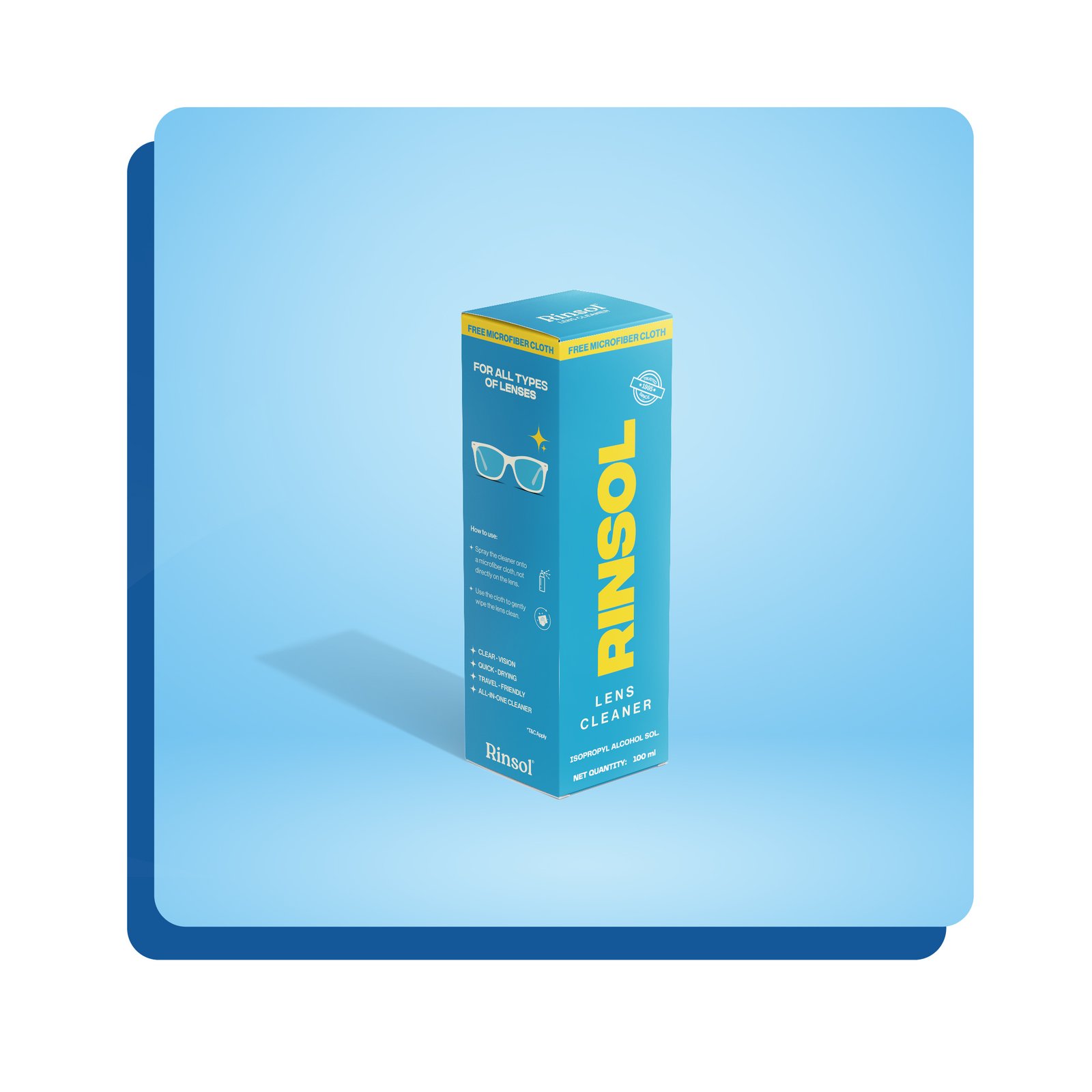
Rinsol Digital Screen Cleaner & Wipes Plus
Spray for the desk • Wipes for between cleans
Frequently Asked Questions
What is the best way to clean a laptop screen?
Can I use screen cleaner spray on a monitor?
Is microfiber cloth safe for screens?
Can I use glass cleaner on a laptop screen?
How often should I clean my computer screen?
Conclusion
Your WFH screens work harder than almost any other surface in your home. They are on for more hours, touched more often and exposed to more varied contamination than a traditional office screen. They are also sophisticated display panels whose coatings need appropriate cleaning to keep their performance and appearance.
For most setups, a proper screen cleaner spray and a dedicated microfiber cloth, used correctly and regularly, are the complete answer. If you want to maintain keyboards and ports too, a laptop cleaning kit provides everything in one organised system. The right tools protect the far larger investment of your work devices. Two minutes of correct cleaning per week will do more for your screens than a tissue and whatever is on the desk ever could.